
The Windows App Workspace
Sage 100 Contractor Cloud uses Windows App, a Microsoft application, to launch the 100 Contractor and Database Administration applications. Think of it as a browser-based dashboard that gives you quick access to Sage 100 Contractor Cloud and other programs that your system administrator makes available to you.
Sage 100 Contractor Cloud apps that you are authorized to use appear in the Windows App workspace, as shown here:
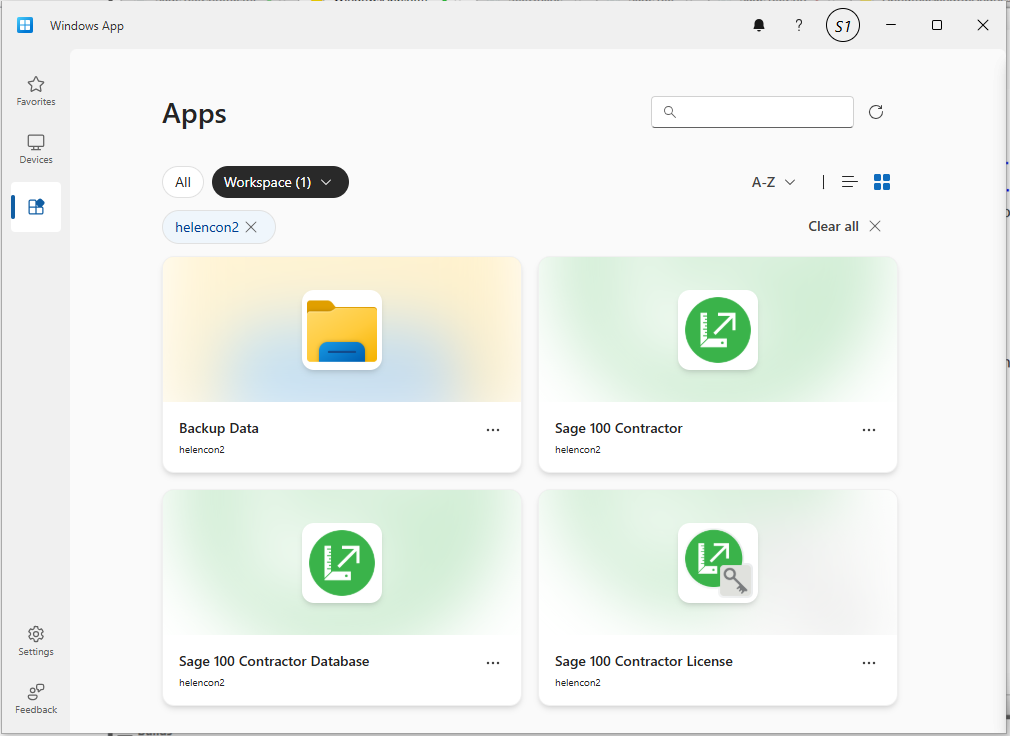
You use these icons to start Sage 100 Contractor and other applications.
The site for your company (or companies) is created as part of the initial purchase and set up of Sage 100 Contractor.
If you have set up only one site, that site is automatically selected. If you have set up multiple sites, they are ordered alphabetically and you can switch between them. A scroll bar automatically appears in the site list display, if needed.
| Icon | Description |
|---|---|
| Sage 100 Contractor |
Click to open Sage 100 Contractor on your computer. While using Sage 100 Contractor, press F1 to display online help for the screen you are using. To close Sage 100 Contractor, click > , or click the ‘’ at the top right corner of the Sage 100 Contractor desktop. |
| Data Drive |
You use the Data Drive to find resources and documentation, to store company data and customized reports, and to transfer data between your local drive and Sage 100 Contractor. For more information, see About the Data Drive. |